
You don’t need expensive software to edit great videos on a Mac. There are plenty of free and paid options available, each designed for different workflows and skill levels.
To help you find the right fit, we’ve reviewed the best Mac video editing software based on performance, ease of use, features, and value.
10 Best Video Editing Software For Mac (Full Reviews)

Apple iMovie
Best Free Video Editor for Mac Beginners
- Free trial: Free forever
- Starting price: $0
- Platform: Mac, iPhone, iPad only
iMovie comes pre-installed on every Mac and iPhone. It’s a free video editing software for mac, and the easiest to begin with. You get a clean timeline, basic transitions, color correction, audio tools, titles, and direct export to YouTube, Vimeo, or your camera roll.
You can start a project on your iPhone and continue editing on your Mac, making it especially useful if you already use Apple devices.
Why It Made the List
It’s free. It runs natively on Apple Silicon Macs (M1, M2, M3, and M4 chips). You get fast, highly-optimized 4K video editing and exporting here. iMovie strikes the right balance between simplicity and capability. It includes enough features to create YouTube videos, social media content, and podcast videos.
Note: iMovie for Mac requires macOS 11.5.1 or later, at least 4GB of RAM, and 3.5GB of available storage. The iOS version requires iOS/iPadOS 16.0 or later and is compatible with supported iPhone and iPad models. An Apple Account is required to download the app.
Key Features of iMovie
- 4K HDR support on newer Macs
- Create videos using drag-and-drop editing tools.
- Direct AirDrop and iCloud handoff from iPhone to Mac
- One-click color balance and audio noise reduction
- Chroma key (green screen) support
- Has 20+ visual styles to give your videos a unique look.
- Ready-made Storyboards for creating videos for different use cases.
- Trim, split, and rearrange clips with simple editing controls.
- Add titles, transitions, and visual effects to your videos.
- 13 creative video filters to match your preferred style.
- 100 built-in soundtracks that automatically adjust to your video’s length.
- Add Apple ProRAW images directly to your video timeline.
- Export and share your finished videos directly from your Mac
Pros
- Completely free with no watermark
- Extremely beginner-friendly
- Clean and easy-to-use interface
- Supports 4K video projects
- Works easily across Apple devices
Cons
- No advanced color grading tools
- Limited to two video tracks
- No motion graphics or advanced effects
- Not good for complex editing workflows
Detailed Pricing
- Free (comes with every Mac)
Final Cut Pro
Best for Serious Mac-Native Creators
- Free trial: 90-day free trial
- Starting price: $299.99 one-time purchase
- Platform: Mac only
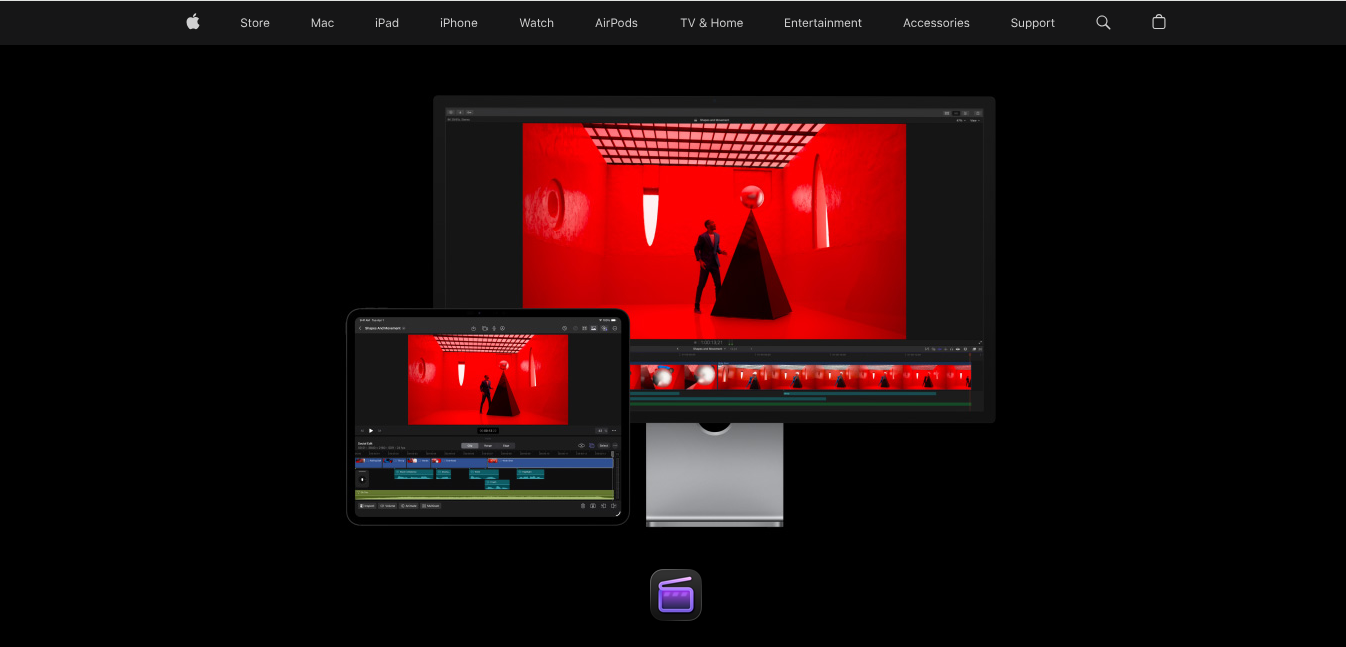
Final Cut Pro is Apple’s professional video editing software built specifically for Mac users. Whether you’re creating YouTube videos, marketing content, short films, or client projects, here you get powerful editing tools. All this without locking you in any monthly subscription plan.
Since it’s optimized for Apple’s hardware, you can enjoy smooth performance and faster rendering on M-series Macs.
Why It Made the List
Final Cut Pro gives you faster editing, smoother playback, and quicker exports. You can work with high-quality formats like ProRes RAW, edit multi-camera projects without slowdowns, and use the Magnetic Timeline to keep your edits organized.
You also get advanced color correction, audio mixing tools, automatic captions, and object tracking. And the best part is, it’s very cost-effective as you just have to pay once instead of ongoing subscription fees.
Key Features of Final Cut Pro
- Keep your edits organized with the Magnetic Timeline.
- Edit ProRes RAW and HEVC footage with Apple Silicon optimization.
- Get advanced color grading and LUT support.
- Sync and edit multicam projects with up to 64 camera angles.
- Proxy workflows for editing on less powerful Macs.
- Generate captions automatically from spoken audio.
- Reframe videos for different platforms with Smart Reframe.
- Sync edits to music using Beat Detection.
- Reduce background noise with Voice Isolation.
- Access a wide range of titles, transitions, and effects.
- Create and edit 360° video projects.
Pros
- Get 90-day free trial
- Get professional editing capabilities
- Large library of built-in effects, titles, and transitions
- Regular feature updates from Apple
- You can continue editing while projects render in the background.
Cons
- Can’t collaborate with Windows-based editors
- No native multi-user collaboration tools
- Steeper learning curve
Detailed Pricing
- Final Cut Pro is available as a one-time purchase for $299.99.
- You can also access it through Apple Creator Studio for $12.99/month or $129/year.
Adobe Premiere Pro
Best for Cross-Platform Teams and Agencies
- Free trial: 7-day free trial
- Starting price: $22.99/month (annual plan)
- Platform: Mac and Windows
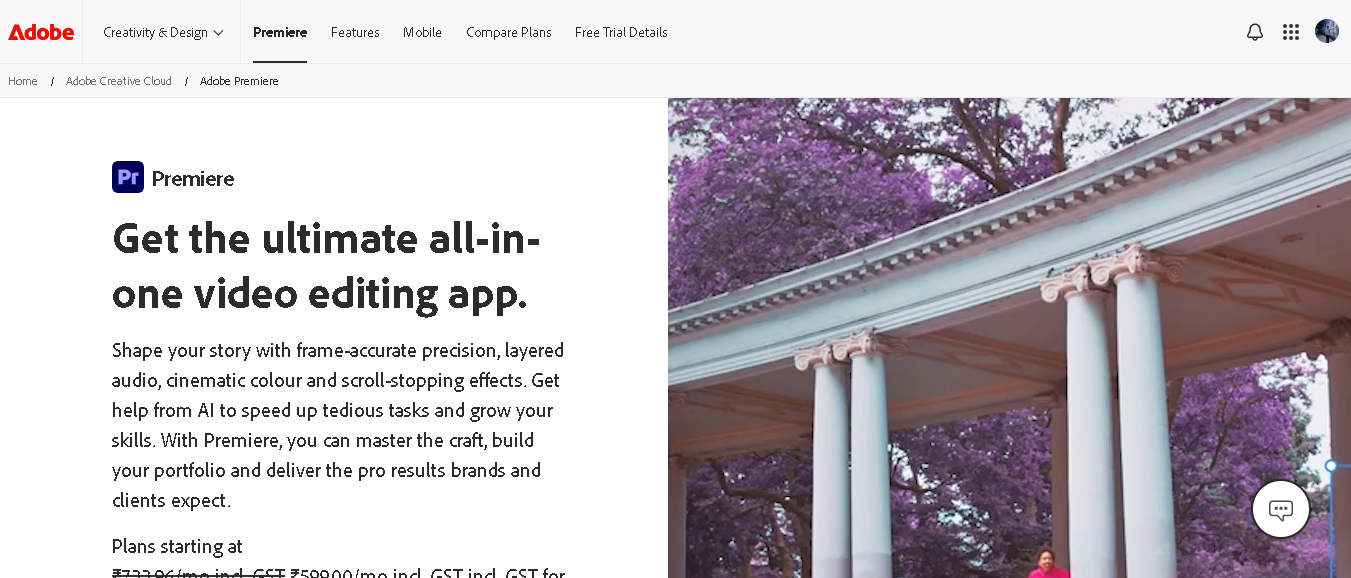
Adobe Premiere Pro is one of the most widely used video editing tools for professional content creation. You can use it on your Mac while collaborating with teammates or clients who work on Windows.
It also connects seamlessly with other Adobe apps like Photoshop, After Effects, and Audition. And if you already are using Adobe Creative Cloud, you may already have the access for the same.
Why It Made the List
Premiere Pro makes collaboration much easier when you’re working with a team. You and other editors can work on different parts of the same project at the same time using the Productions feature. This also makes it very easy to share files with clients, agencies, and production teams.
Key Features of Adobe Premiere Pro
- Edit videos with a professional multi-track timeline.
- Get built-in Lumetri Color grading tools.
- Work on shared projects with your team using Productions.
- Resize videos for different platforms with Auto Reframe.
- Generate captions automatically with Speech-to-Text.
- Move projects easily between Premiere Pro, After Effects, Photoshop, and Audition.
- Collaborate with clients and teammates through Frame.io integration.
- Extend clips and fill small gaps in your timeline with Generative Extend.
Pros
- It works on both Mac and Windows
- Easily integrates with Adobe creative suite
- Regular feature updates on subscription
Cons
- Pricing is very high
- Complex, if you’re just doing simple edits
Detailed Pricing
- Premiere Pro: $22.99/month (billed annually)
- Creative Cloud All Apps: $59.99/month
- Teams Plan: $33.99/user/month
DaVinci Resolve
Best Free Pro-Grade Video Editor
- Free trial: Free forever (with a paid Studio upgrade)
- Starting price: $0 (Studio: $295 one-time)
- Platform: Mac and Windows and Linux
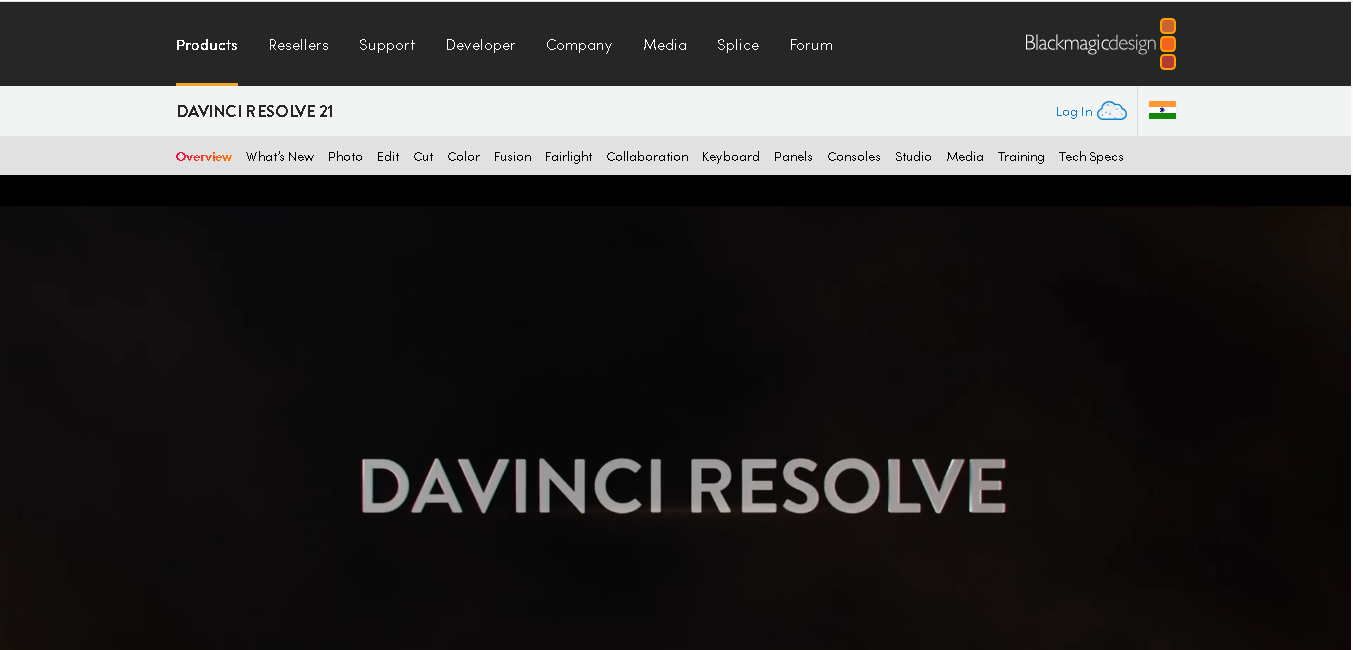
DaVinci Resolve is the single best free video editing software for mac you’ll find anywhere. It combines video editing, color correction, visual effects, motion graphics, audio post-production, and photo editing all in a single application.
Generally it started as a professional color grading tool used in Hollywood. Now, it has evolved into a full-featured video editing platform that’s accessible to beginners and powerful for professional creators.
Why It Made the List
The free version of DaVinci Resolve covers editing, color, audio (Fairlight), and motion graphics (Fusion). Most creators will never need to upgrade to Studio. It also runs well on Apple Silicon with Metal GPU acceleration.
Key Features of DaVinci Resolve
- Edit videos, audio, color, and VFX in one place.
- Use professional color grading and correction tools.
- Access 100+ built-in effects and motion graphics.
- Speed up editing with smart AI-powered tools.
- Create advanced visual effects in the Fusion workspace.
- Mix and enhance audio with Fairlight tools.
- Edit large files smoothly with proxy workflows.
- Create social media content with vertical timeline support.
- Add and manage subtitles and captions easily.
- Work with a wide range of file formats and editing platforms.
Pros
- One of the best free video editor on this list
- Built-in Fairlight audio mixing
- Works cross-platform (Mac, Windows, Linux)
Cons
- Has a steep learning curve
- Free version lacks some noise reduction and collaboration features
- Heavier on GPU than Final Cut Pro
Detailed Pricing
- DaVinci Resolve: Free plan
- DaVinci Resolve Studio: $295 one-time

CapCut
Best for Social Media Creators and Reels
- Free trial: Free forever (Pro features require upgrade)
- Starting price: $0
- Platform: Mac, Windows, iOS, Android, browser
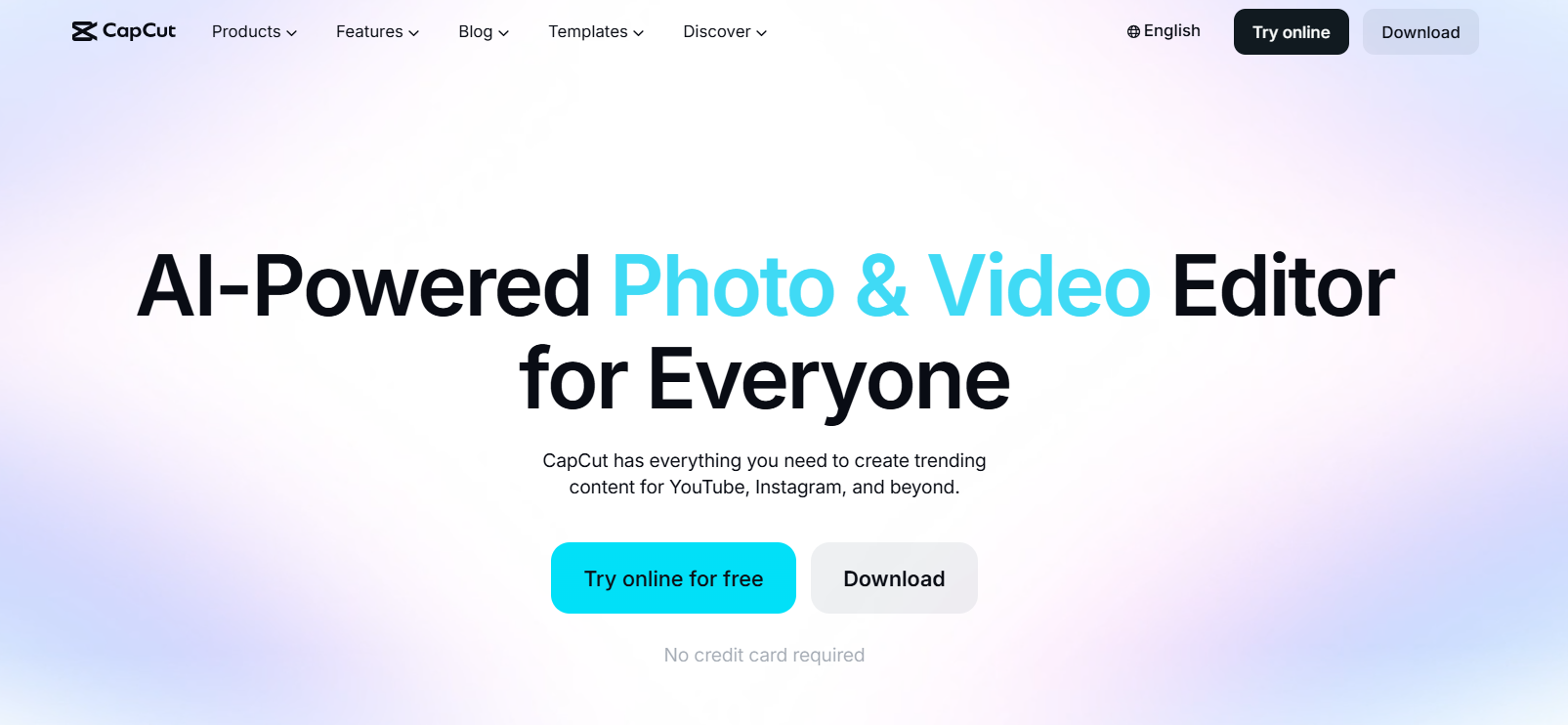
CapCut started as a mobile video editing app and grew into a full desktop tool. You can trim clips, add effects, generate captions, apply templates, and create social media-ready videos quickly.
It has a large template library and built-in creative tools. And is especially popular among TikTok, Instagram, and YouTube creators.
Why It Made the List
CapCut is fully optimised for macOS and comes equipped with a multi-track timeline, AI-powered tools, and a massive library of effects. It’s faster, affordable and better compared to other expensive video editing softwares.
Get ready-made templates, automatic captions, transitions, and effects to create video content in minutes. You can download directly from the Mac App Store or CapCut official site.
Key Features of CapCut
- Simple drag-and-drop video editor
- Get HD video exports
- Text-to-speech voiceovers
- Voice enhancement and noise reduction
- Video trimming, splitting, and transitions
- Automatic subtitle generation (across multiple languages)
- AI background removal (no green screen needed)
- Built-in templates for TikTok, Reels, and Shorts
- Large library of effects, filters, and social media templates
Pros
- Free plan available
- Has a beginner-friendly interface
- Excellent for short-form content
- Large collection of templates and effects
- Available on desktop, mobile, and web
Cons
- Not good for advanced professional editing
- Limited color grading
- Some premium features require a paid plan
- Limited collaboration features
Detailed Pricing
- Free Plan available
Descript
Best for Podcasters and Talking-Head Video Editors
- Free trial: Free plan (1 hour of media/month)
- Starting price: $16/month (Hobbyist, annual billing)
- Platform: Mac and Windows
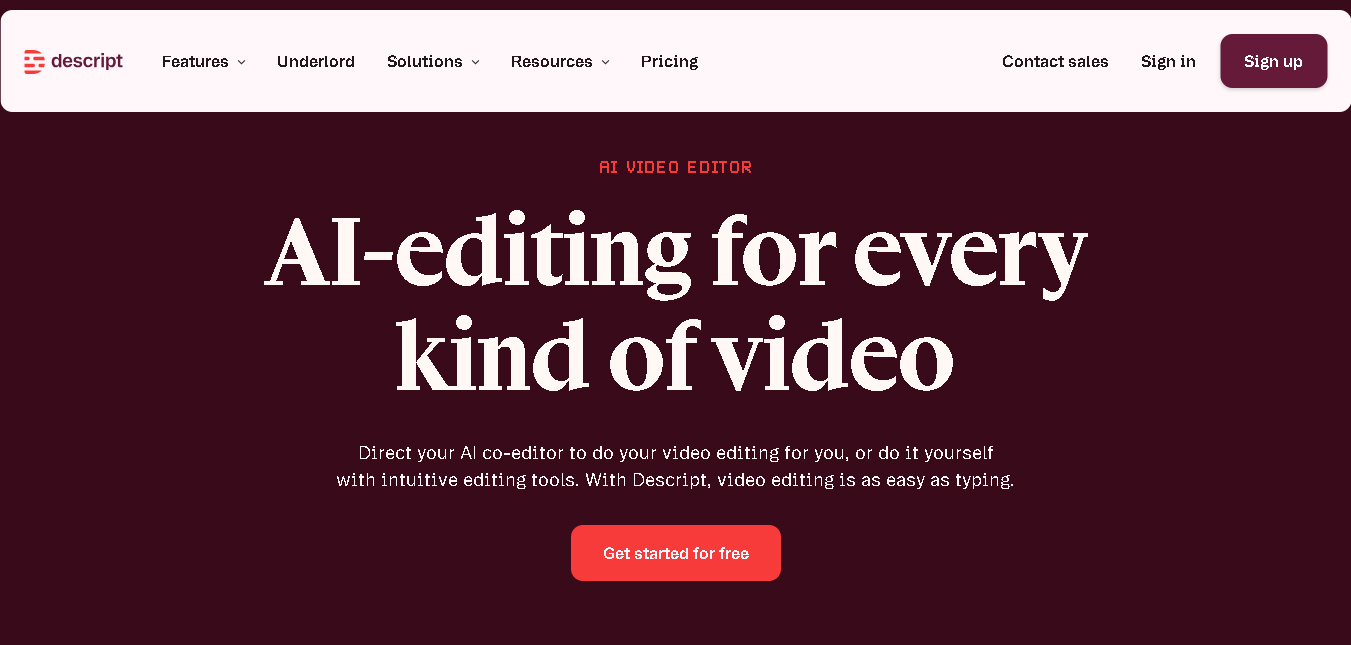
Descript takes a different approach to video editing. Instead of spending most of your time on a timeline, you edit your video by editing the transcript. Delete a word, sentence, or paragraph, and Descript automatically removes the matching section from your video or audio.
This makes it especially useful for podcasts, interviews, webinars, tutorials, and interview-style content. Here, most of the editing involves cleaning up speech rather than creating complex visual effects.
Why It Made the List
Descript removes much of the technical complexity that comes with traditional video editing. It comes with features like Studio Sound (clean up background noise), Eye Contact (make you look directly at the camera) and Underlord (turn scripts into videos).
You can record, transcribe, edit, add captions, improve audio quality, and publish content all from one place. And if you’re someone who regularly works with spoken content, it can dramatically speed up your editing process.
Key Features of Descript
- Text-based video and audio editing
- Automatic transcription for recordings and uploads
- One-click filler word removal
- Automatic caption generation
- Studio Sound for cleaner voice recordings
- Eye Contact feature for correcting camera gaze
- Green screen background removal
- Built-in screen and webcam recording
- Translation tools for multilingual content
- Custom avatars for presenter-style videos
- Quick Design templates for layouts, transitions, and B-roll
- Script writing and editing tools
Pros
- Fastest way to edit interview-style and podcast videos
- Multiple editors can work in one project
- Has built-in screen recording
Cons
- Not for complex multi-track projects
- Business plan is expensive for small teams
- Limited color grading and effects tools
Detailed Pricing
- Free Plan Available
- Hobbyist: $16/user/month
- Creator: $24/user/month
Filmora
Best for Beginners Who Want Polished Results Fast
- Free trial: 30-day trial (watermarked exports)
- Starting price: Free plan available
- Platform: Mac and Windows
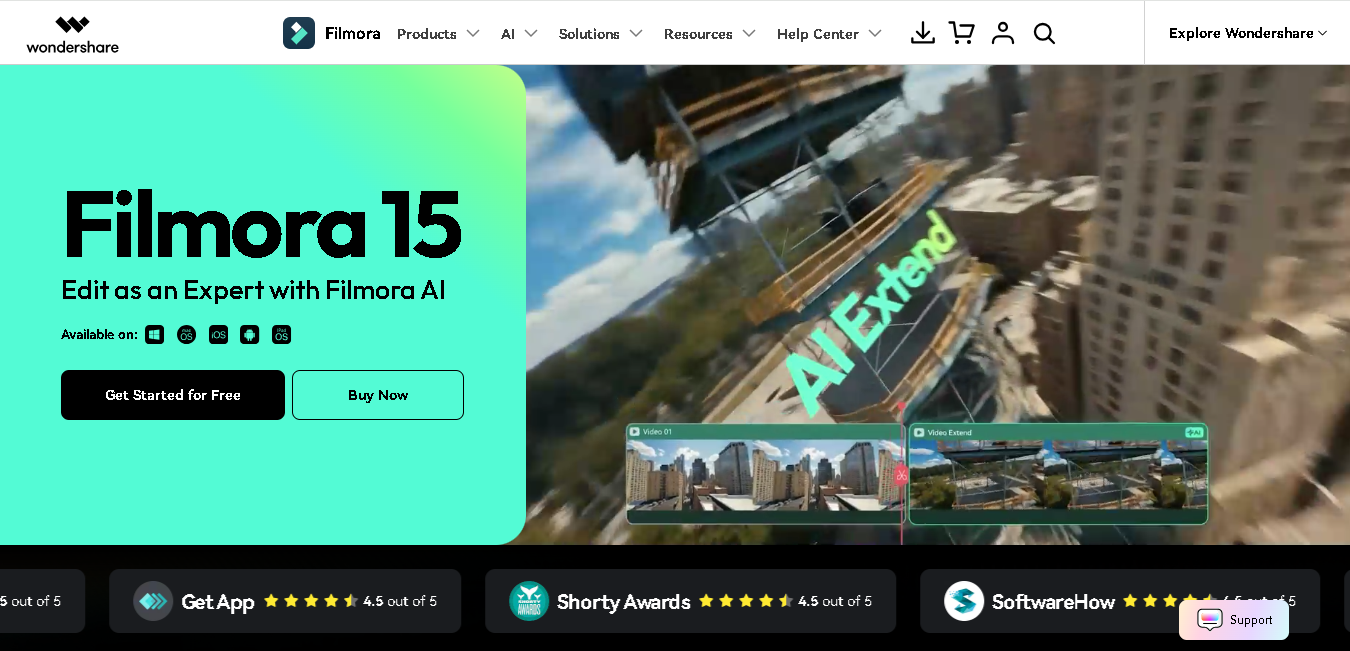
Filmora gives you more creative control than beginner editors but also comes with slight steep learning curve. The interface is friendly, the effects library is large, and come with AI tools like: AI Portrait, Speech to Text, and Auto Beat Sync.
The software is optimized for macOS and Apple Silicon devices. This gives you a smooth editing experience whether you’re working on a MacBook Air or a high-end Mac Studio.
Why It Made the List
With Filmora you get access to advanced editing tools, creative effects, templates, stock media, and smart automation features. It’s more capable than iMovie and far less intimidating than Premiere or DaVinci Resolve.
Key Features of Filmora
- Drag-and-drop timeline with 15,000+ built-in effects and transitions
- 10,000+ ready-to-use video templates
- Over 1 million creative effects, transitions, stickers, and assets
- Access to 1.5 million+ royalty-free stock media files
- AI Portrait — removes video backgrounds without a green screen
- Text-to-video and image-to-video creation tools
- Speech-to-text transcription
- Object removal tools
- AI-powered color matching and color correction
- Hand-drawn animation effects
- Screen recording and webcam recording built in
- Cross-device editing between Mac, iPhone, and iPad
- Cloud sync for accessing projects across devices
- Optimized for Apple Silicon and ProRes workflows
Pros
- Easy to learn for beginners
- Large library of templates and effects
- Works across desktop and mobile devices
Cons
- Free version includes export limitations
- Some advanced features require higher-tier plans
Detailed Pricing
- Individuals: US $9.99/month
- Advanced: US $29.99/year

OpenShot
Best Completely Free Editor for True Beginners
- Free trial: Free forever
- Starting price: $0
- Platform: Mac, Windows, Linux
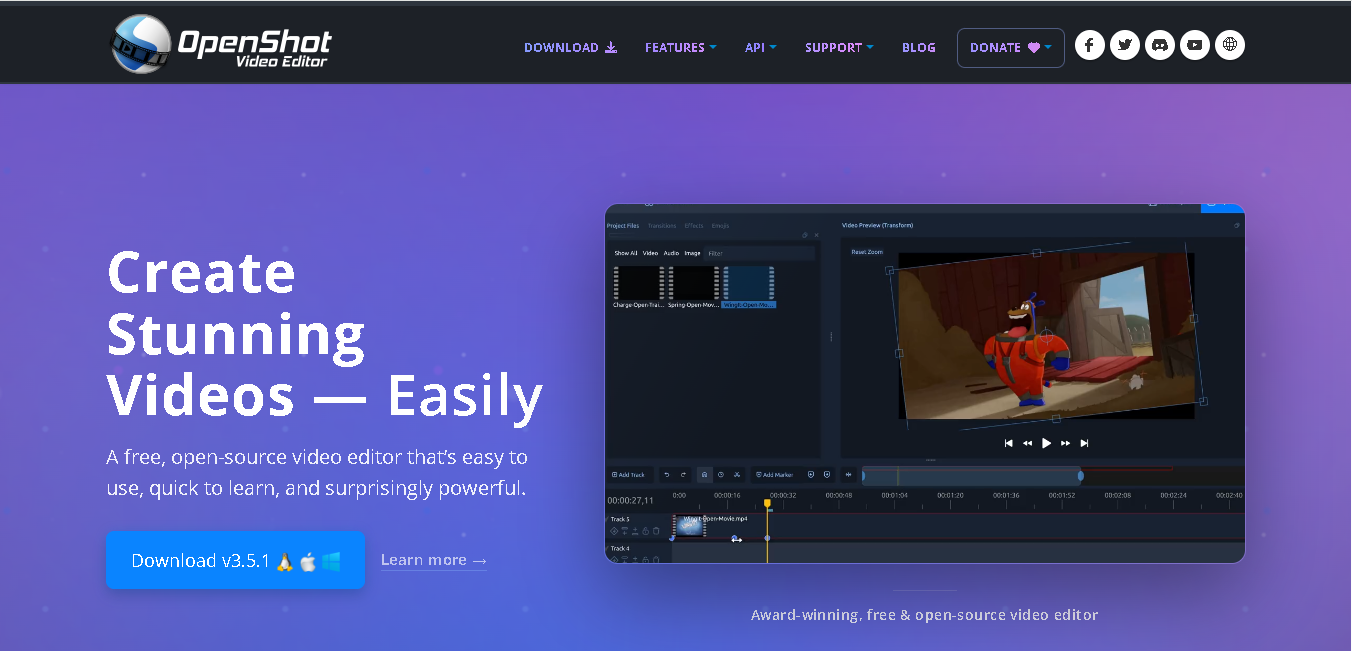
OpenShot is a free, open-source video editing software for mac, Windows and Linux. You get unlimited tracks, basic transitions, titles, audio mixing, slow motion, and a 3D animation title generator, all for free.
It’s best if you’re just getting started, have zero budget, and need a functional editor on your Mac right now.
Why It Made the List
OpenShot is not the most powerful tool on this list, but it gets the job done for basic cuts, explainer videos, and simple social content. For small nonprofits, agencies or SMBs or anyone who can’t justify any spend on editing software, OpenShot is a solid, honest recommendation.
Key Features of OpenShot
- Unlimited video, audio, and image tracks
- Drag-and-drop clip editing
- Basic transitions, effects, and filters
- 3D animated title generator (via Blender integration)
- Keyframe animations for position, scale, and opacity
- Slow motion and time effects
- Exports to multiple formats and resolutions
- Available in 70+ languages
Pros
- It’s completely free
- It’s an Open source tool
- Works on Mac, Windows, and Linux
- Active community and GitHub support
Cons
- Not fit for larger files or complex projects
- Interface is less refined than paid tools
- No advanced color grading
- Slower render times
Detailed Pricing
- Completely free open-source software
Shotcut
Best Open-Source Editor for Technical Users
- Free trial: Free forever
- Starting price: $0
- Platform: Mac, Windows, Linux
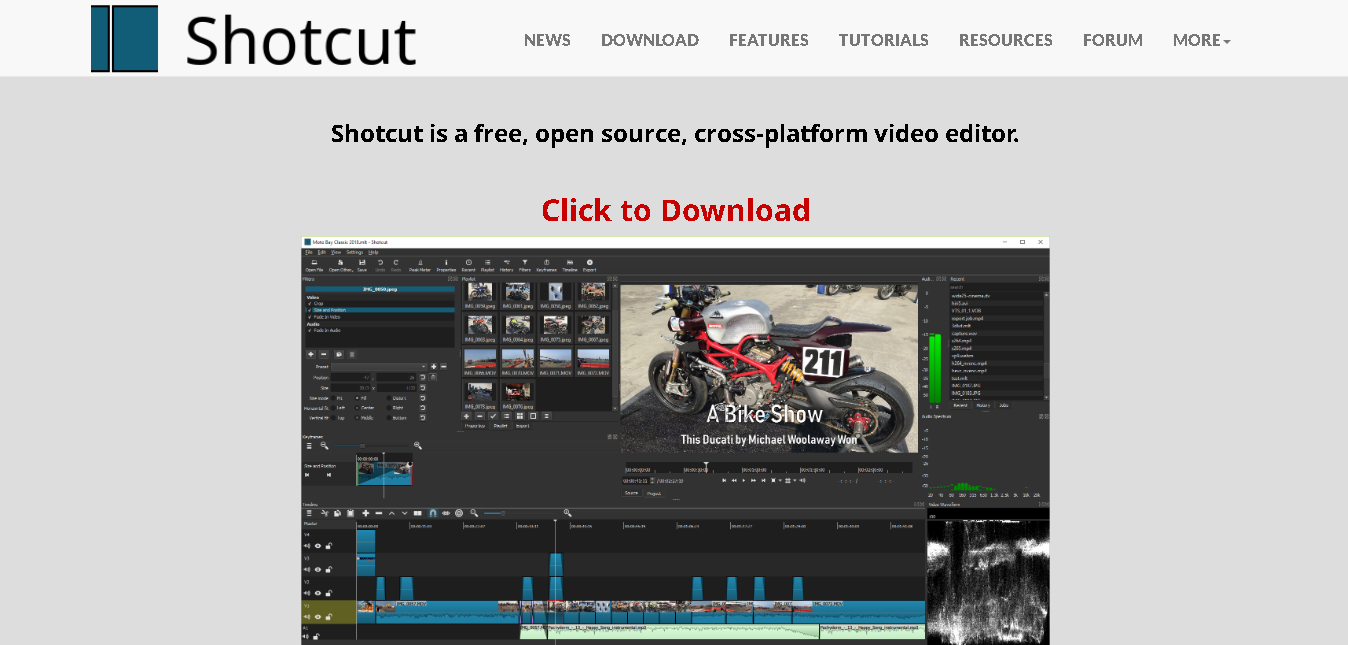
Shotcut is a free, open-source video editor that offers format support and technical depth. You can start editing immediately since there’s no need to import files before adding them to the timeline.
It supports a wide range of video and audio formats, making it easy to work with different types of media. You’ll get access to powerful editing tools, but the interface can take some time to learn.
Why It Made the List
With Shotcut you can edit videos in multiple resolutions and frame rates on the same timeline. You can also work with 4K footage, record your screen or webcam, and apply a wide range of effects and filters.
Key Features of ShotCut
- Completely free and open-source
- Supports hundreds of audio, video, and image formats
- Native timeline editing with no file import required
- Multi-format timelines with mixed resolutions and frame rates
- 4K video editing support
- Screen, webcam, and audio recording tools
- Frame-accurate editing for supported formats
- Video filters, transitions, and effects
- Drag-and-drop editing workflow
- Cross-platform compatibility across Mac, Windows, and Linux
- Customizable workspace with dockable panels
Pros
- Open-source and community-supported
- Supports a wide range of file formats
- Works on Mac, Windows, and Linux
Cons
- Not an intuitive interface
- Steep learning curve
- No built-in stock media library
Detailed Pricing
- Completely free open-source software

Lightworks
Best for Budget Editors
- Free trial: Free tier (unlimited use, 720p export limit)
- Starting price: $0 (Create: $13.99/month)
- Platform: Mac, Windows, Linux
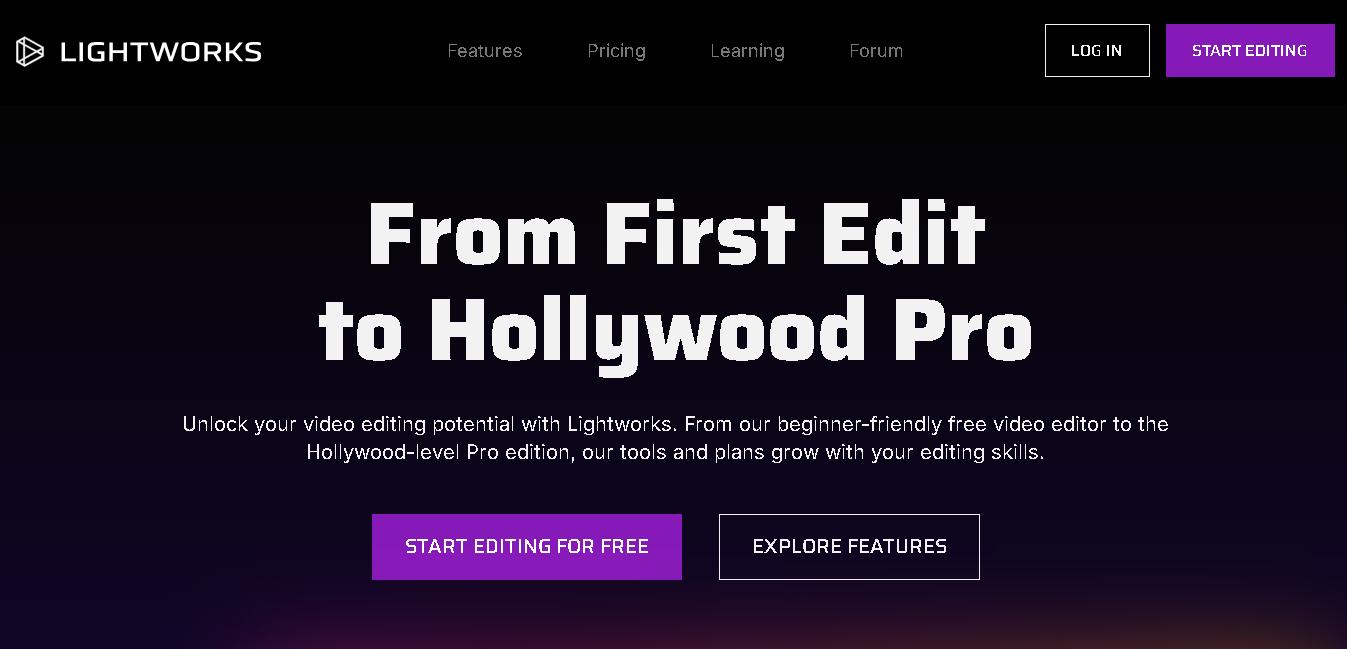
Lightworks gives you access to professional-grade video editing tools without requiring a large upfront investment. The free version gives you access to most of the editing tools you’ll need, with the main limitation being exports capped at 720p.
You can work with multiple video and audio tracks, make frame-by-frame edits, and handle complex projects with ease. Its editing workflow is a bit different from most modern video editors, so it takes some time to learn.
Why It Made the List
Lightworks is a good option when you want more advanced editing tools than beginner-friendly software provides but aren’t ready to invest in expensive professional platforms. You get professional multi-track editing, strong format support, and smooth GPU-accelerated playback, even on demanding projects.
Key Features of Lightworks
- Non-linear editing timeline with multi-track support
- Real-time effects (over 100 FX without rendering)
- Access broadcast-level editing features.
- Multi-camera editing
- Collaboration tools on Pro plan
- Export presets for YouTube, Vimeo, and broadcast formats
- Boris Graffiti and FX plugins included on Pro perpetual license
- 7-day free trial of full Pro tier on download
Pros
- Smooth playback with GPU acceleration.
- Supports a wide range of video formats.
- Active community for learning and support.
Cons
- Free version limits exports to 720p.
- Has a steep learning curve
- Smaller built-in effects library than some competitors.
Detailed Pricing
- Free plan available
- Create: $13.99/month
- Pro: $27.99/month
How to Choose the Right Video Editing Software For Your Mac
You’ve read the reviews. Now here’s a fast decision framework based on the questions your situation actually asks.
If you just want to start editing today with zero cost
Start with iMovie. It’s free, easy to use, and already available on most Macs. You can create polished videos without spending time learning complex tools. As your editing needs grow, you can move to Final Cut Pro or DaVinci Resolve.
You create YouTube videos or content exclusively on Mac
Final Cut Pro is one of the best options you can choose. The 90-day trial is enough time to build a real project and see if it fits. Plus, it runs exceptionally well on Apple hardware, offers fast exports.
You work with a team that uses both Mac and Windows
Adobe Premiere Pro makes collaboration much easier. You can share projects across different operating systems, work with freelancers, and streamline client feedback with built-in collaboration tools.
You want professional editing tools without paying
DaVinci Resolve gives you access to advanced editing, color grading, and audio tools at no cost. It takes some time to learn, but you get capabilities that rival many paid video editors.
You mainly create social media content
CapCut for quick, template-based content. Descript if you’re doing interview-style or podcast video. Both are faster for these use cases than anything else on the list.
You run a small business or create marketing videos occasionally
Filmora strikes a good balance between ease of use and features. You can learn it quickly while still having enough tools to create product videos, ads, and marketing content.
You’re looking for the best free option possible
Shotcut and OpenShot are free alternatives worth considering.
Final Thought
There isn’t a single best video editing software for every Mac user. The right choice depends on your editing experience, content style, and workflow. Start with the tool that fits your current needs today. You can always move to a more advanced editor as your projects grow.
Read More: 7 Best Duplicate File Finders for Windows And Mac (2026)